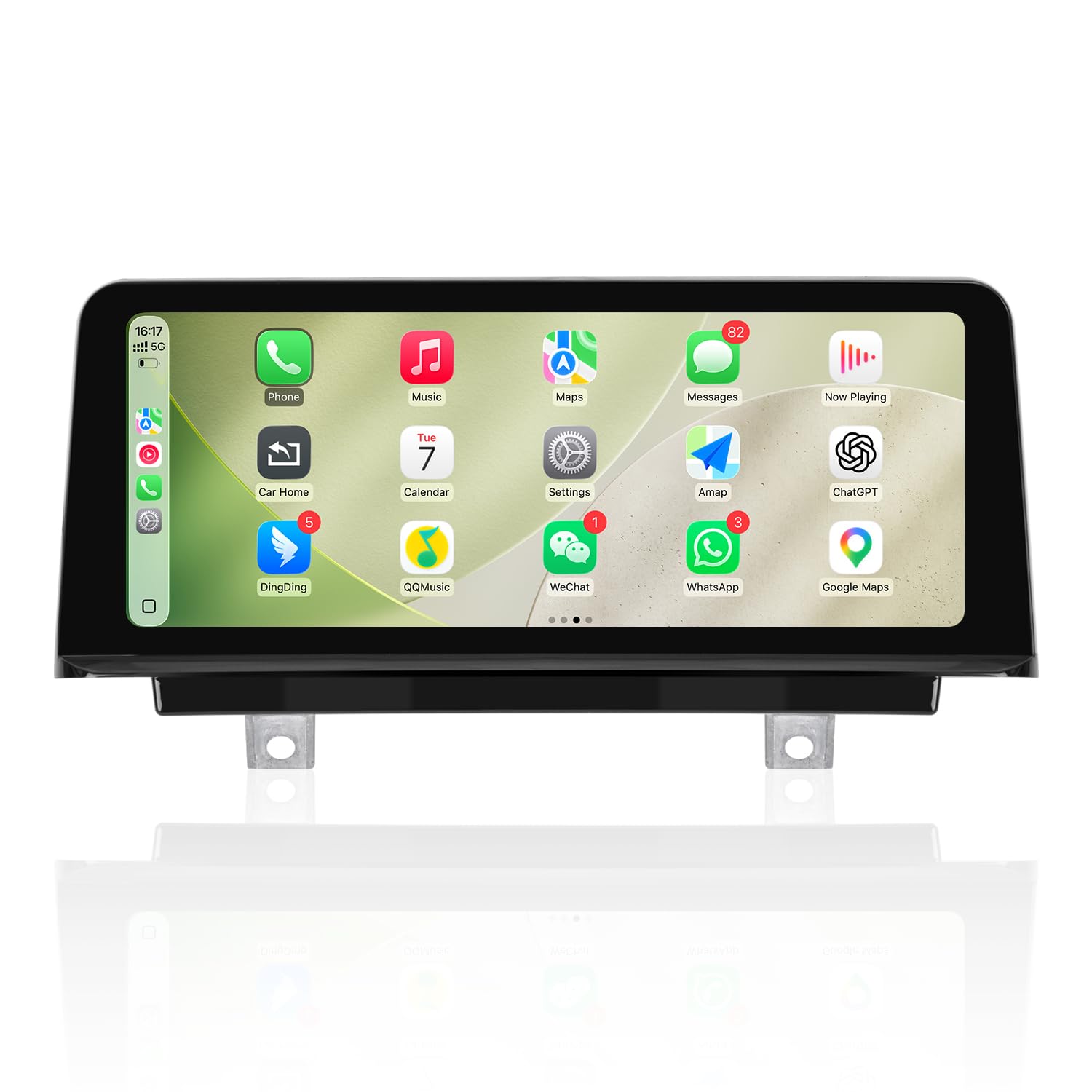
[Vehicle Compatibility Reference] This Linux touch display for BMW 2012-2017 vehicle models including 1 Series F20/F21, 2 Series F22, 3 Series F30/F31/F34/F35, 4 Series F32/F33 with factory 6PIN LVDS CIC and ID4 NBT systems. A small number of 2017 model year vehicles are equipped with the ID5 and ID6 EVO systems; this screen is completely incompatible with these vehicles. [Full Driving & Entertainment Functions] This unit runs on a responsive Linux operating system and supports wired and wireless CarPlay, Android Auto and Mirror Link functions; you can answer incoming calls via factory steering wheel buttons, view real-time reverse camera footage and parking radar alerts, and the screen works seamlessly with factory stock cameras and aftermarket CVBS or 720P AHD cameras, supports factory knob control for media interfaces and local music & video playback via USB storage drives. [HD Touch Screen & Flexible Interface Switching] The display features a sharp 1920x720 HD capacitive touch panel and matches factory native resolution to retain all original vehicle information on screen; you can long press the menu button to freely toggle between the factory vehicle interface and CarPlay interface, and factory steering wheel control buttons remain fully functional after installation. [Factory Bluetooth Audio & Audio Troubleshooting Guide] You can take calls and stream media audio through factory Bluetooth while using wireless CarPlay and Android Auto for clear sound playback, follow the connection tutorial video on the listing to complete correct setup and switch audio call mode on your mobile device after pairing; and an auxiliary audio adapter cable is recommended for vehicles lacking built-in AUX ports for quick plug-and-play audio connection. [Product Functional Limits & Professional Support] Several functional restrictions apply to this display: it does not support aftermarket cameras over 720P AHD resolution, offline video playback maxes out at 720P, there is no built-in 4G or GPS module, and the onboard WiFi only enables automatic wireless pairing with mobile devices for CarPlay and Android Auto; our after-service team offers instant professional assistance for any fitment, audio, installation or screen distortion issues before and after purchase.
YEAR MODEL
2012-2017 3 Series F30 F31 F34 F35, 4 Series F32 F33, 1 Series F20 F21, 2 Series F22 NBT CIC.
PRODUCT PROCESS CHARACTERISTICS
1. Piano lacquer: Piano lacquer process the frame is made of piano lacquer, which is wear-resistant and provides better visibility.
2. Non-air-gap: Black background craft with full lamination process, the distance between the display and the touchpad is 0, and the display is more realistic.
3. Narrow frame: The frame is only 1MM, which increases the viewing area of the display.
FEATURED FUNCTIONS
HD IPS Screen resolution: 1920x720
Support wired and wireless Carplay Android Auto Mirror Link.
Support the OEM and After-market Camera: You can select the camera option in the settings theafter-market camera only support CVBS or 720P AHD format.
FIBER OPTIC SWITCHING
When your car's original CD player cable has a fiber optic cable, how to properly adapter fiber optic cables?
Operational Steps: Please note, improperly adapted fiber optic cables can result in no sound from the unit.
Step 1: Unplug the 2P fiber optic cable from the original CD player and remember the hole where the cable is located.
Step 2: Insert the 2P fiber optic cable you just unplugged into the appropriate hole on the YEEHUNG ISO hamess.
Step 3: After the fiber optic cable is inserted, plug the ISO hamess into the stock CD player.
Step 4: Finally, you can just connect the ISO hamess on the other end to the stock CD cable.
AUTOMATIC SWITCH TO AUX
You can set auto AUX mode, when switch to Carplay or Android auto, the sound will be switched automatically. Please select the correct factory host brand (Harman or Alpine).
1. Select "Car Settings" in "setup" and find "Automatically switch to AUX".
2. You can choose "Harman Head Unit" or " Apine Head Unit" according to your car.
MANUAL AUX SETTING METHOD
You can also store the AUX mode in the 8 button, and every time you press the 8 button before entering a new system, you can get the sound of Carplay or Android auto.
1. Go to "Main menu" and select "Multimedia".
2. Then select "External devices".
3. We long press the number key "8", when we hear the tone ringing, we are set.
4. Press 8 every time before entering the new system, You'll get the Carplay sound.
USB CONNECTION AND OEM RESOLUTION AND CAMERA SETTINGS
1. Need use the USB IN1 Connect the Wired Function: Be sure to use USB IN 1 to connect the wire
| Size | 10.25″ F30 F20 NBT CIC 2012-2017 |
| Mpn | YH-9213 |
| Age_group | ADULT |
| Condition | NEW |
| Gender | UNISEX |
| Product_category | Gl_wireless |
| Google_product_category | Electronics > Communications > Telephony |
| Product_type | Electronics > Car & Vehicle Electronics > Car Electronics > Car Video > In-Dash Navigation |